App Permissions: What "Allow This App to Access X" Actually Means
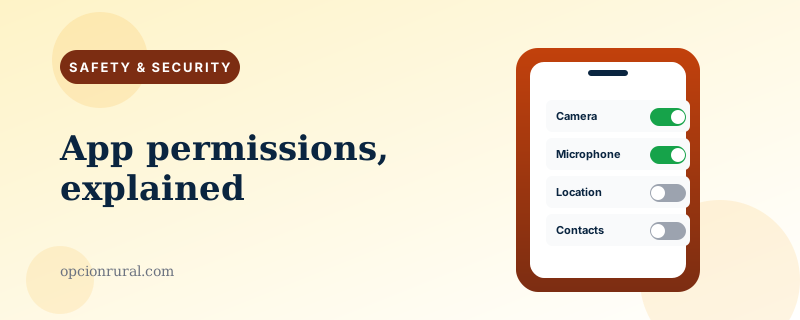
The little pop-up that appears the first time you open a new app — "Photos would like to access your photos," "Maps would like to use your location," "WhatsApp would like to access your microphone" — is a security feature. It's not a hassle. It's the phone, on your behalf, asking whether you really want to give the app something that could be misused.
Most users tap "Allow" without reading. The phone's default for permission requests is designed for that — tapping the wrong button does not break things horribly, and many of the permissions are entirely reasonable. But knowing what the requests mean, and which ones to say no to, is one of the small skills that makes a phone safer over time.
The seven you'll actually see
Almost every permission request falls into one of these categories. Here is each one, with a rule of thumb for when to say yes.
Camera. The app can take photos and videos using your phone's camera. Say yes for the camera app, video-call apps, scanner apps, and the apps for taking photos of receipts to deposit checks. Say no for anything that doesn't obviously need to see things.
Microphone. The app can record audio. Yes for messaging apps that send voice notes, video-call apps, voice assistants. No for a flashlight app or a game.
Photos. The app can see your existing photo library. Yes for apps that need to pick a photo (Facebook, Instagram, your bank app for check deposit). On modern iPhones, you can choose "Selected Photos Only" — letting the app see only specific photos you choose rather than all of them. That's usually the better answer.
Location. The app knows where you are. Yes for Maps, ride-share, weather, your bank's fraud-detection. For these, you'll usually have a choice between "While Using" (the app sees your location only when open) and "Always" (any time). "While Using" is almost always the right answer.
Contacts. The app can read everyone in your phone's address book. Yes for messaging apps and email. No for shopping apps, games, and anything else that doesn't obviously need to know who your sister is.
Bluetooth. The app can talk to other devices over Bluetooth. Yes for fitness trackers, hearing aid apps, the apps that pair with smart speakers. No for everything else.
Notifications. The app can interrupt you with pop-ups, sounds, and badge numbers. Be ruthless about this one. Yes for messaging, calendar, your bank's fraud alerts, medication reminders. No for almost everything else. Most apps want notifications because it pulls you back into the app for reasons that benefit them, not you.
The general rule
Ask one question before tapping Allow: does the app obviously need this to do its job?
A weather app obviously needs location to tell you the weather. A flashlight app does not. A check-deposit app obviously needs your camera. A flashlight app does not. (Flashlight apps come up so often because historically, sketchy ones were the worst offenders, asking for permissions to harvest data they had no business with.)
If the answer to "does it obviously need this" is no, tap Don't Allow. Worst case, the app stops working the way you wanted, and you can grant the permission later in Settings. There is no harm in saying no first and yes later.
How to review what you've already granted
Both phones make this easy.
iPhone: open Settings → Privacy & Security. You'll see a list of every permission category — Camera, Microphone, Contacts, etc. Tap one. You'll see every app that has been granted that permission. Toggle off any that surprise you.
Android: open Settings → Privacy → Permission Manager. Same idea. Tap a permission category to see which apps have it. Revoke as needed.
A twice-a-year sweep is a reasonable cadence. It is surprisingly common to find that an old shopping app, opened once and never revisited, still has access to your contacts because Allow got tapped without thinking. Revoke. The app would almost always have worked fine without it.
The newer permissions worth knowing
Two permissions have been added in the last few years and they're worth understanding.
Tracking. Specifically on iPhone, this is the question "Allow this app to track your activity across other companies' apps and websites?" The honest answer is almost always Ask App Not to Track. The app will still work. Saying yes lets advertisers follow you around the internet. There is no benefit to you.
Local Network. The app wants to see other devices on your home Wi-Fi. Yes for printer apps, music-streaming-to-a-speaker apps, smart-home apps. No for most others. A game does not need to know what's on your Wi-Fi.
The warning sign you should actually heed
If an app asks for a permission that has nothing to do with what the app is for — a calculator asking for your location, a wallpaper app asking for your contacts, a flashlight app asking for your photos — that's not a slightly awkward design choice. That's a red flag. The app is likely harvesting data to sell.
Delete it. Find a different app that does the same thing without asking for inappropriate permissions. There are usually several alternatives for any function.
The same applies if an app you've used for years suddenly asks for new permissions during an update. Read the request carefully. If the request makes sense given a new feature you actually wanted, grant it. If it doesn't, tap Don't Allow. The app may continue to nag you about it; ignoring the nag is usually fine.
The misunderstanding that costs people sleep
Granting a permission does not mean the app is constantly using it. Granting Camera permission to WhatsApp doesn't mean WhatsApp is always recording. It means that when you tap the camera button inside WhatsApp, it can open the camera. The camera doesn't activate by itself.
That said, the indicators are there to confirm. On iPhone, a green dot in the top-right of the status bar means a camera is currently active; an orange dot means a microphone is. On Android, similar indicators appear in the upper-right.
If you ever see those indicators light up when you're not actively using a camera or microphone, swipe down from the top of the screen to see which app is responsible. Then go to Settings and revoke that permission.
The phone is, in this small way, on your side. It cannot prevent every misuse. It can show you what's happening. The rest is paying attention.
Written by Justin Lowen. Last verified 5 June 2026.